Caller Information Tab Fields
The Caller Information
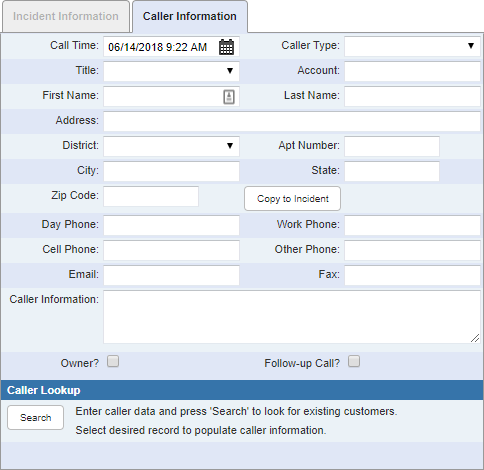
- Call Time: Use the calendar icon or enter the date and time of when the call was placed.
- Caller Type: Select the caller type from the drop-down list.
- Title: Select a title from the drop-down list if needed. Titles are defined in Designer under Preferences > Service Request > Caller Title Values. See Configure Service Request Preferences in the Designer for 15.8 Guide for more information.
- Account: Enter a corresponding account number. This field automatically populates when a first or last name is selected.
- First Name: Enter one to three letters of the customer's first name. A list opens providing the user several name options. Select the appropriate name.
- Last Name: Enter one to three letters of the customer's last name. A list opens providing the user several name options. Select the appropriate name.
- Address: Enter the caller's address.
- Apt Number: Enter an apartment number if applicable.
- City: Enter the city for the address.
- District: Select a district from the drop-down list.
- State: Enter the state for the address.
- Zip Code: Enter the zip code for the address.
- Copy to Incident:
- Day Phone: Enter a day phone number.
- Work Phone: Enter the caller's work phone number.
- Cell Phone: Enter the caller's cell phone number.
- Other Phone: Enter another phone number for the caller.
- Email: Enter the caller's email.
- Fax: Enter a fax number.
- On-site?: Select if the service request is for the address the caller is calling from.
- On-site Date: Enter the date the crew was on the site or select it using the calendar.
- Call the customer back?: Select if the customer needs to be called back.
- Callback Date: Enter the date the customer is called back or select it using the calendar.
- Caller Information: Enter any additional information about the caller. This field may automatically populate when a caller is selected to add to the service request.
 NOTE: This works when users select a caller based on the customer account information and all the caller fields are automatically populated.
- Owner?: Select if the caller is the owner of the property.
- Follow-up Call?: Depending on how your organization has decided to use this check box, select to note that a follow-up call is needed, or that a follow-up call has been made. This field can be searched to show you what service requests need a follow-up call.
- Search:
NOTE: If you enter criteria in the Account or Last Name fields and press Enter, a list of matching callers shows in the Caller Lookup section. Once you select a caller, you can search for other callers with the same last name by